
At some point, you will want to export some of your data to a CSV. If this data contains leading zeroes - for example if you have clients on the east coast where the zip codes often contain a zero as the first digit, you will find that your spreadsheet software "helpfully" removes these automatically, leaving you with some incomplete data.
You can get those leading zeroes back. The following are instructions for excel, but if you're using something different you can do an internet search for the process for that product.
- Select the cell or range you're working with (the zip code column in this case)
- Right-click the selected cell or range and choose Format Cells from the context menu.
- Click the Number tab.
- Choose Custom from the Category list.
- In the Type field, enter the number of 0s necessary to accommodate the largest value. In this example, you will enter 5 zeroes because zip codes contain 5 digits.
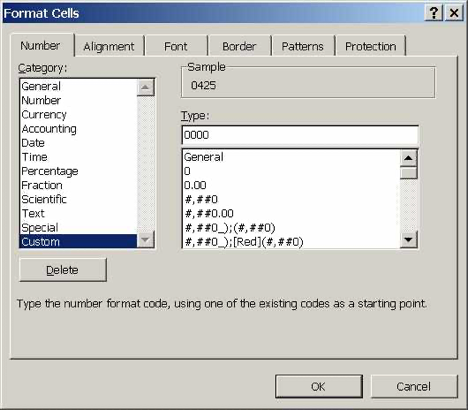
If the area of concern for you is limited to zip codes, there's also another way to format those cells. Instead of selecting "custom" as in the example above, select "special" and there's a zip code option in the list.