
The most common reason to insert an image into a template is to include a graphic signature at the bottom of your emails. The easiest way to do that is to follow these steps:
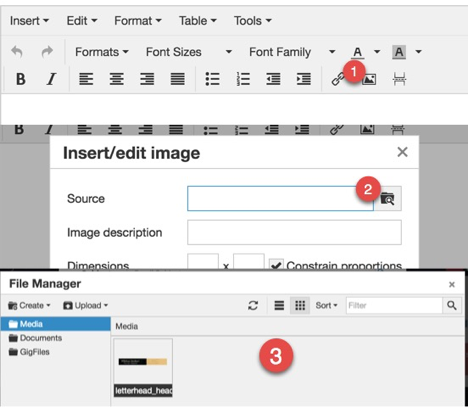
1. In either the email compose window, or the template editor click the image icon in the toolbar.
2. Click the file browser icon.
3. You can either select an existing file in the cloud file manager or upload a new file.
4. Click on the image you want to insert.
To save time, insert images into your email templates rather than manually putting them into every email you write. There's even a signature picker so you can chose between several signatures you have on file if you have more than one business property - for example one for kids parties and one for corporate events.