
The process of sending an email blast is pretty straightforward. You'll be surprised at how easy it is to share content with selected groups of contacts with just a few clicks.
Step 1. Decide who you're trying to reach. You can send targeted blasts to a subset of your contacts, or send something to all of your contacts, it's up to you! You'll define who will receive your email blast using tags, so it's a good idea to keep your tags up to date in your contact records. You can use the advanced search tool in the main navigation menu to filter your contacts, then mass update the filtered list with a new tag, or you can use tags that are already in place. All of your contacts have the "all" tag applied to them.
Step 2. Once you've identified who you want to send your email blast to, it's time to write the content. Go into "automation" and then click "templates" and then click the plus sign to make a new one.
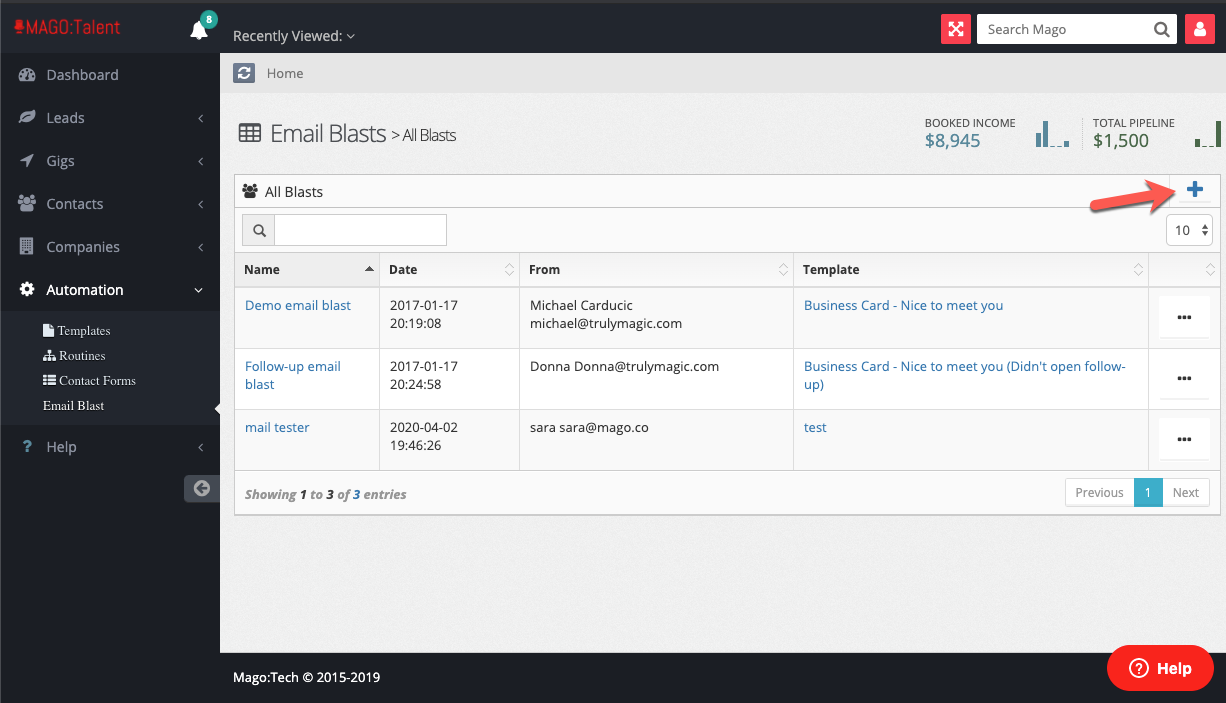
Time to get creative, and don't forget to proofread! You can use merge fields to personalize it to each contact, but only use contact and company merge fields. Gig fields will NOT merge because there is no gig for Mago to associate the merge with. If you're doing a large blast, keep in mind that some of your contact records might not have all the information in them, in which case they'll see a blank space in the final product. Best practice is to use some merge fields, but keep them to a minimum so you don't reference a field that isn't filled in on some of your records. You can even add attachments, although it is better to link to your attachment rather than attaching it to your email. When you're done, SAVE your template.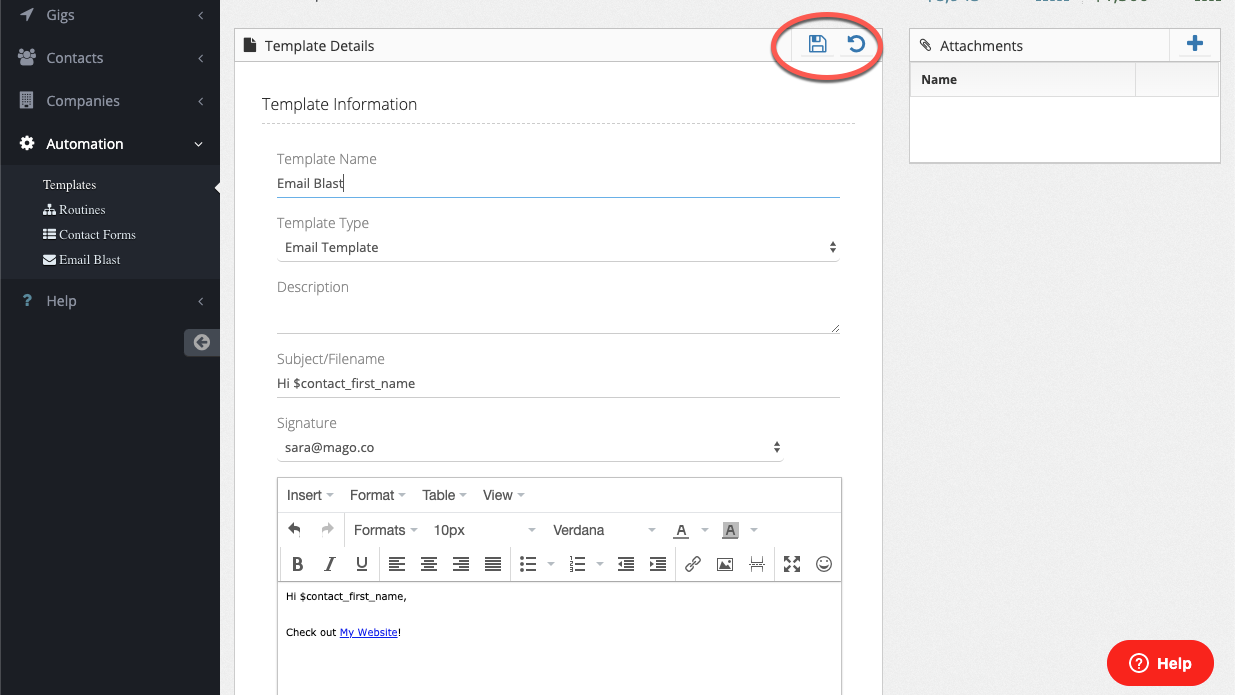
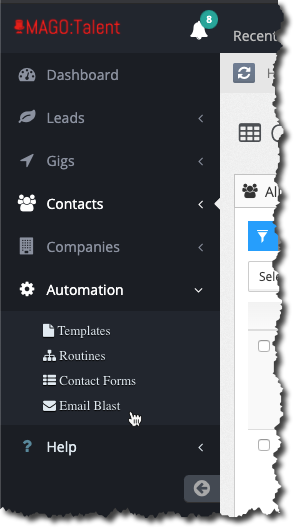
Step 3. Now that you've got your tags ready and your template dialed in just the way you want it, it's time to make the magic happen! Using the main navigation menu, click "automation" then "Email Blast."
Click the plus sign to create a new one and follow the prompts. You'll give your blast a name (this is for your reference), enter a "from" name, select a "from address" if you've got more than one, and set the schedule for your blast to be sent. Then all you have to do is select that template you just made, and enter the tags you want it sent to and click the save icon. 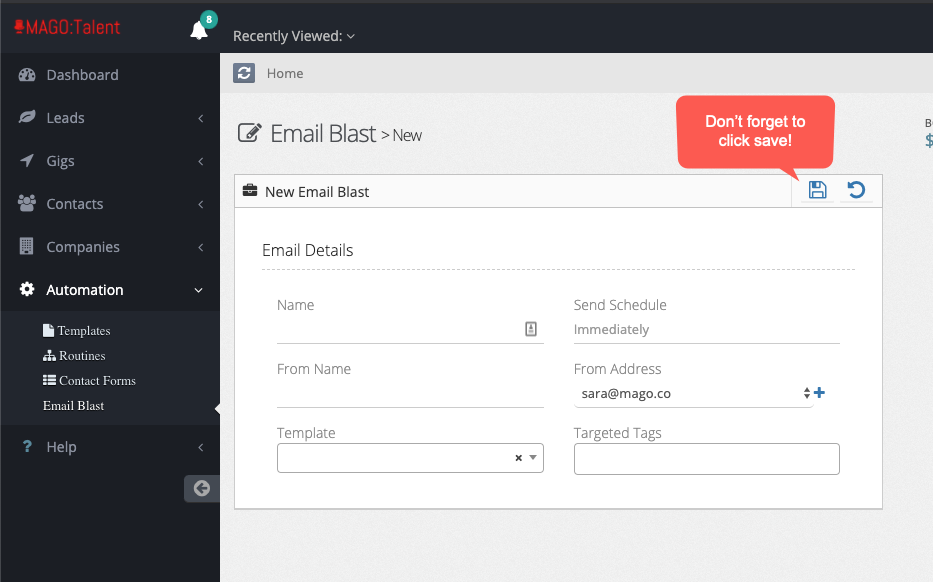
That's it, you've sent your first email blast!
Note - It's not a bad idea to send yourself a test version of your email blast just to make sure everything looks like you were expecting. We recommend setting up a test contact to send all your tests to. When you do that, make sure that the email address associated with that contact is not one that your Mago account is associated with or your email blast will be interpreted as a duplicate and won't reach your inbox.
You'll then be presented with a reporting page that will give you some insight as to how your campaign went over.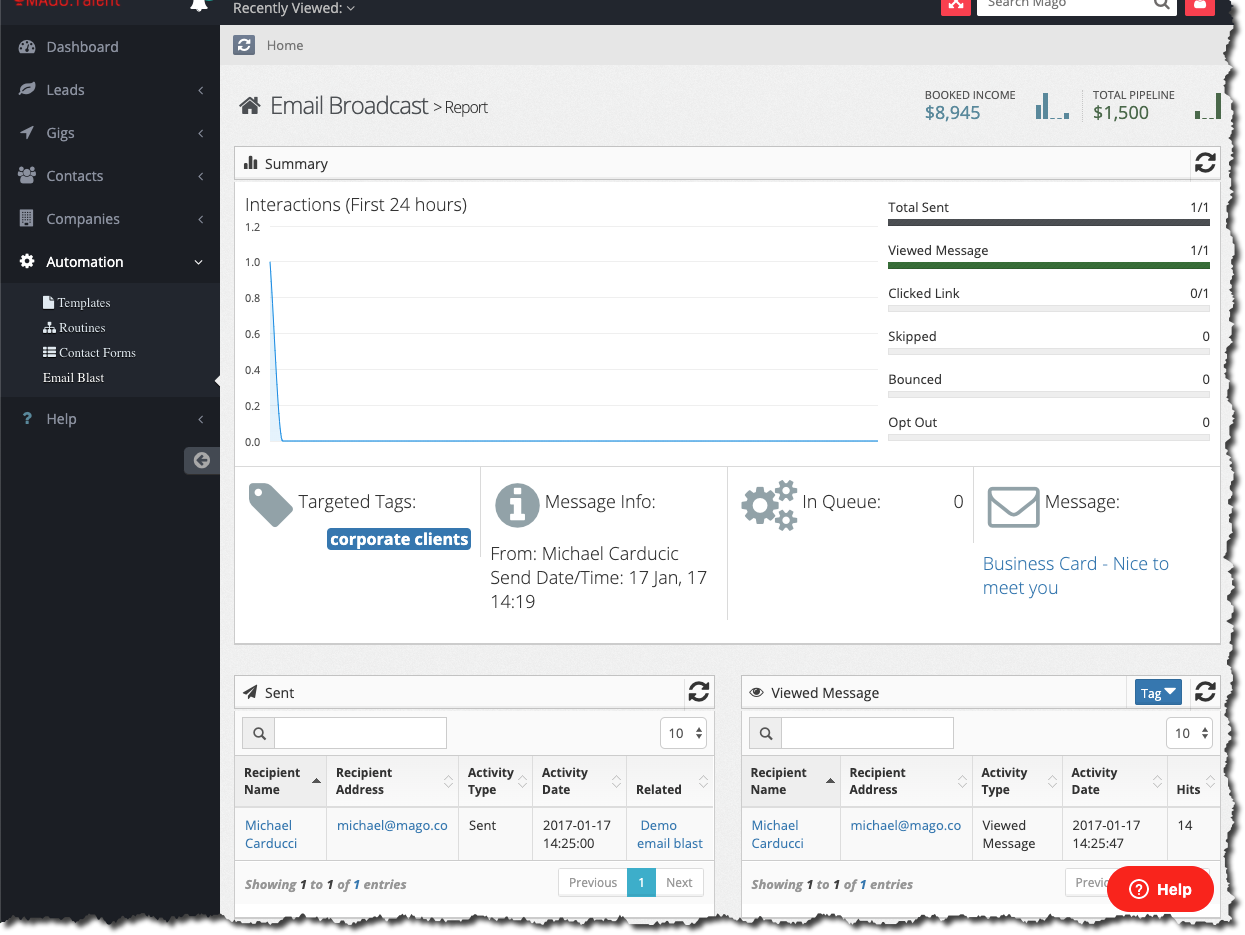
Sent - Tells you who the blast was sent to
Viewed/Clicked - Can give you an idea of who opened your message. It's not foolproof, though. Some email providers block attempts at tracking for privacy reasons, so it's likely some will appear unopened when they actually were opened but tracking was blocked.
One way to use this data is to collect the contacts that opened your message multiple times and give them a new tag to indicate that they seem to have a high level of interest and target them with sales emails later. There's even a handy tag button right there so you can tag those people right there on the spot.
Opt-Out - These are messages that did not get delivered because the contact has opted out.
Bounce - These were rejected by the recipient server, likely because they were flagged as spam. If you see a lot of these, you should go to https://www.mail-tester.com/ and collect the email address it gives you, make a contact for it, and send an email blast to just that address and then check your score. It will point out areas of potential improvement.
Skipped - The email blast engine is designed to detect duplicates and skip them so each email address receives only one copy of your email. Usually it's because the recipient is on more than one tag lists you included. The duplicates will be "skipped", as well as any contact that doesn't have an email address.