A core function in any crm is to facilitate communication between you and your clients. Mago takes that a step further by allowing you to produce those communications in a very efficient manor. This is key because it is vital to building relationships, building trust, and closing more sales.
You want to maintain a top of the mind awareness- in other words you want to be the first person they think of when they think of whatever service it is that you provide. You don't want to do this with an onslaught; you want to do this with a trickle, reaching out from time to time. When a gig date passes, or a potential gig date passes that you didn't book, it actually reminds you to schedule some type of future follow-up just to keep that spark of the warm lead alive to develop into a booked gig later on in the future.
Most of the time, when you want to compose an email, you will use the communications menu.
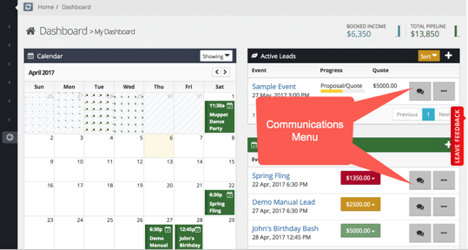
Anywhere you see a communication menu, there is the option to compose an email.
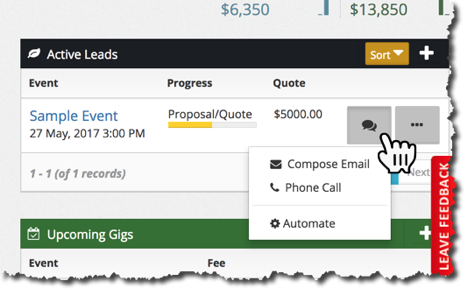
Clicking that brings up the compose email window. You can resize this if need be, and there are a few ways you can configure your email.
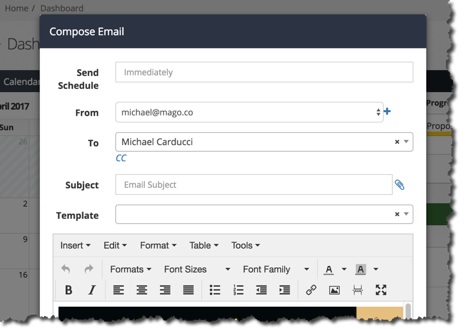
Send Schedule - It's possible to schedule an email for a future date, or send it immediately.
From - You can specify who the email is from. It’s easy to set up multiple email address, and it’s covered in another article.
To - You can select your recipient. In this particular case, the lead only has one contact associated with it so there's only one option there. If you had multiple contacts associated with a particular lead or a gig you would be able to select a different contact to cc or even bcc them. It's also possible to cc or bcc other users in your crm.
Subject - This is what you want to appear in the subject line.
Attachments - The little blue paper clip icon allows you to upload any attachments you would like to send with your email. We’ll cover the file manager in another article.
Template - You can always write an email from scratch but it’s much more efficient to use templates. There's a lot to cover on the templates, so don't worry too much about those right now, we will dive deep into the templates in another series of articles.
If you're familiar with most word processing applications, you'll be fairly familiar with this toolbar that allows you to perform various formatting activities inserting images, hyperlinks, etc.
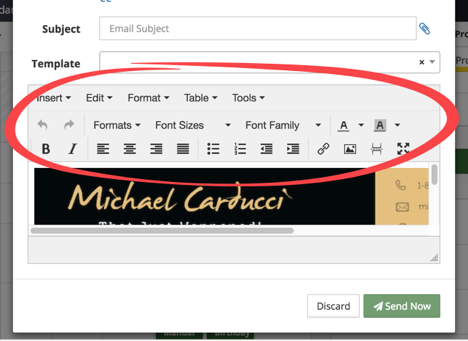
Once you're happy with the content of your email, simply click "send" and it'll be on its way.
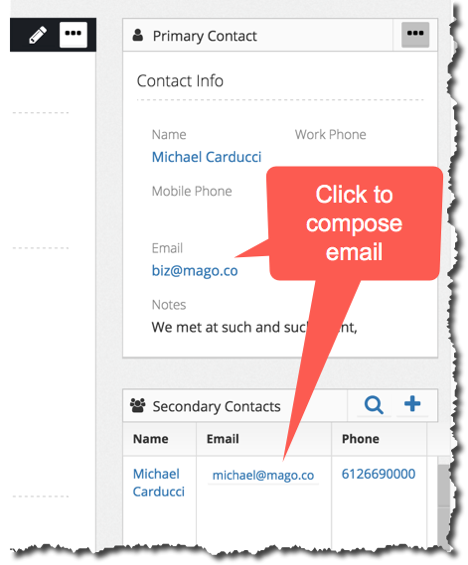
Anywhere in the application you see an email address, clicking on that email address will automatically bring up the compose window.
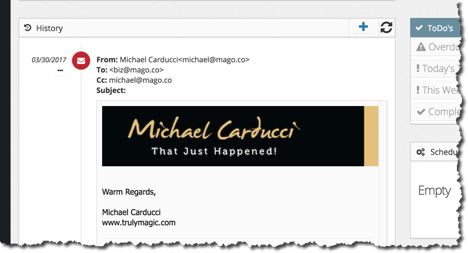
Mago makes it easy to keep track of email that's been sent and received. Any email that gets sent through the system in Mago will appear in the history. (Scroll down in the dashboard to view the history)