
When you subscribe to Mago, in addition to getting access to the application itself and all the tools it provides, you also get more than a Gig and a half of cloud storage. This is both to protect your files against any data loss in case any one location or facility crashes, but it also gives you fast access to your files no matter where in the world you happen to be.
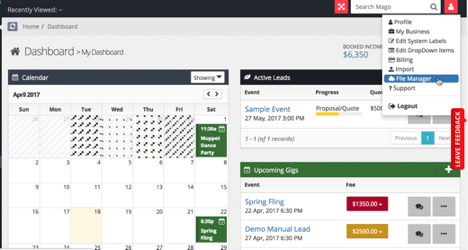
To access the file manager, click on the icon in the upper right of the screen and select "file manager.”
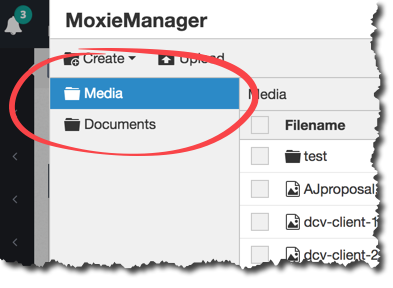
By default, your files are broken into two groups. The “media” folder is where you will store your videos and images you’ll want to use. The “documents” folder is where you’ll store any documents you might want to attach to emails (a flyer, your W-9, etc)
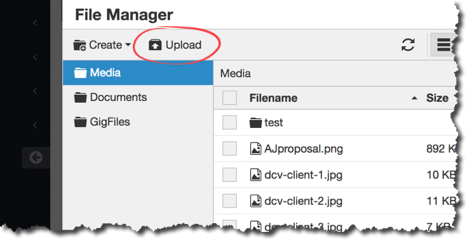
When you're looking at the file manager from inside a gig, there's a 3rd option, which is “gig files”. These are files that relate specifically to that gig. So if you generate a contract or an invoice, a copy is always stored in your cloud files under "Gig files.”
You can always use the “Create” folder icon if you would like to create more folders to further organize your files.
To Upload a File
When you want to add a file to your cloud storage, select “upload.” This will open a file browser that will allow you to select a file from your local machine to upload to the cloud.
If you would like to give someone a link to a file so they can download it, open the file manager and select the file you want to share a link to. A new option will appear at the top of the file manager window called “Manage.”
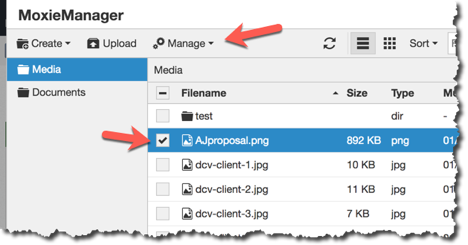
Click “Manage” and select info and you can copy and paste the URL there.
To delete a file, check it and then click on remove.